AWS IAM Fundamentals: Roles, Policies & Best Practices
Learn AWS IAM fundamentals: manage users, roles, and policies securely. Follow best practices to protect your AWS resources effectively.
Summary#
AWS Identity and Access Management (IAM) is a serverless global service used to securely manage access to AWS resources. It operates on a Zero Trust and Least Privilege model, ensuring that identities (Users and Roles) are explicitly granted permissions via JSON policy documents. In 2026, IAM remains the foundational security layer for all AWS services, including Glue, S3, and EC2.
AWS Identity and Access Management Service (IAM)#
If you ever interacted with a Linux machine, then you already understand the core concepts behind identity and access management. Similar to a Linux machine, AWS needs to control access to the services it provide and keep users within their part of the cloud. Identity defines who is able to enter/use the cloud and Access define what they are allowed to do within AWS. Identity and Access Management is a service in AWS which allows users to first sign-up with AWS as a root user and then as a root user create new users and manage access to various AWS services. IAM permissions operate on a least privilege priniciple where all requests are implicitly denied by default.IAM service could be accessed online from the console, through AWS CLI or through AWS SDK for verious languages.
Cost#
Free
Availability#
IAM is a global service and is eventually consistent,which means it is not tied to a region and might take some time to reflect your changes.
Concepts#
Similar to a linux machine, AWS manages identities as Users and Roles
Users#
An IAM user consists of a name and credentials.The core function of an IAM user is authentication and authorization. You define permission policies on users that determine what the user can and cannot do in AWS.
Roles#
A role is a specific type of identity with a set of defined permission on it. Roles are not tied to one specific user, rather they are assumed by users or services as needed.A role does not have long-term credentials such as a password associated with it, instead, when a user or a service assume a role, IAM provides you with temporary security credentials for the session.
External Users#
IAM can also work with external identity providers. In that case the identity is managed by external provider and access is managed by IAM.
Resource#
In AWS resource is something that you can use and manage access to. An example would be an EC2 Instance or an S3 bucket.
IAM Principal#
Principals are authenticated IAM users or roles. Principals are similar to IAM identity and are used as a key in the JSON policy document. The only difference is that while an Identity is usually a user or a role, a principal could represent the identity of an AWS service. Principals are generally used in Resource-based policies to define to whom the set of mentioned permissions are applied to.
Policies#
A policy define permissions and is associated with an identity or a resource. As I mentioned before AWS least privilege principle, an explicit allow policy is required to get access to any resource. There are many types of policies that can be defined in AWS IAM. Below I mention the commonly used ones, for complete list, please refer the specific AWS IAM documentation ↗
- Identity-based:- Identity-based policies are attached to identities and grant permissions.
- Resource-based:- Resource-based policies are attached to the resources and grant permissions to the principal that is specified in the policy.
A policy in AWS IAM is a JSON document except in the case of Access Control Lists
Access Control Lists#
ACLs are cross-account permissions policies that grant permissions to identities outside an account. They are similar to resource based policies and cannot grant permissions to identities within the same account.
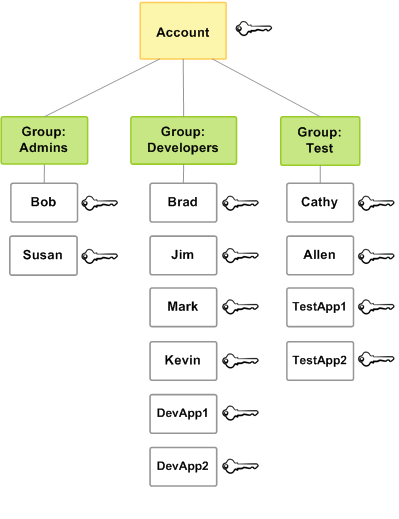
User Groups#
A user group is a collection of users and allows to easily apply permissions to multiple users. Since user groups cannot be authenticated, resource based policies cannot be applied to them, only identity based policies can be applied.
Below simple self explaining diagram can further clarify the use case for user groups.
JSON Policy Elements#
An AWS IAM JSON policy document is made up of elements, basically JSON document keys. There are many elements that make up the policy document. The commonly used ones are:
Version#
Is required and defines the policy language version. 2012-10-17 is the current version of the policy language. For example in current JSON documents you must use
{"Version": "2012-10-17"}2008-10-17 was the older version of the policy language.
Sid#
Is an optional identifier used as a description for the policy statement and it must be unique within a JSON policy.
Effect#
The Effect element is required and specifies whether the statement results in an allow or an explicit deny. Valid values for Effect are Allow and Deny. The Effect value is case sensitive.
Action#
The Action element describes the specific action or actions that will be allowed or denied. Each AWS service has its own set of actions that describe tasks that you can perform with that service. For example "Action": "s3:GetObject" allows to read objects from an S3 bucket.
Principal#
Is required in resource-based policies. IAM role trust policy, which specify who can assume a role, is an example of resource-based policy.You cannot use the Principal element in an identity-based policy. Here is an example of a Trust Policy for an AWS service
{
  "Version": "2012-10-17",
  "Statement": [
    {
      "Effect": "Allow",
      "Principal": {
        "Service": "ec2.amazonaws.com"
      },
      "Action": "sts:AssumeRole"
    }
  ]
}This policy allows AWS EC2 to assume the role to which this policy will be attached.
Statement#
Is required and is the main element for a policy.Statement element can contain a single statement or an array of individual statements. Each individual statement block must be enclosed in curly braces { }. For multiple statements, the array must be enclosed in square brackets [ ]. Here is a brief example of an identity-based policy(no principal element) which gives read-only access to S3 bucket named my-bucket and its objects
{
  "Version": "2012-10-17",
  "Statement": [
    {
      "Sid": "AllowListBucket",
      "Effect": "Allow",
      "Action": "s3:ListBucket",
      "Resource": "arn:aws:s3:::my-bucket"
    },
    {
      "Sid": "AllowGetObjects",
      "Effect": "Allow",
      "Action": "s3:GetObject",
      "Resource": "arn:aws:s3:::my-bucket/*"
    }
  ]
}
For complete details please refer AWS IAM documentation ↗
Simple Examples#
Root user/Full Access policy#
Here is the resource-based policy which provides full access to an AWS account.
NOTE: Please do not use this policy, it is shown here just for an example
{
  "Version": "2012-10-17",
  "Statement": [
    {
      "Effect": "Allow",
      "Principal": {
        "AWS": "arn:aws:iam::123456789012:root"
      },
      "Action": "*",
      "Resource": "*"
    }
  ]
}The Principal arn:aws:iam::123456789012:root define the whole account including root user, other users and roles, not just the root user. Of course 123456789012 is the account id and is different for every account.
Identity-based Policy#
{
  "Version": "2012-10-17",
  "Statement": [
    {
      "Effect": "Allow",
      "Action": "s3:ListBucket",
      "Resource": "arn:aws:s3:::my-bucket"
    }
  ]
}This policy allows the user, group, or role it’s attached to, to list the objects in the bucket my-bucket, but not read, write, or delete *them.
Resource-based Policy#
{
  "Version": "2012-10-17",
  "Statement": [
    {
      "Effect": "Allow",
      "Principal": {
        "AWS": "arn:aws:iam::123456789012:role/AppRole"
      },
      "Action": "s3:GetObject",
      "Resource": "arn:aws:s3:::my-bucket/*"
    }
  ]
}This policy allows only the IAM role AppRole to read objects inside the S3 bucket my-bucket.It does not allow listing the bucket, uploading, deleting, or accessing other buckets.
AWS IAM best practices#
-
Enable MFA everywhere
Especially for the root account and privileged users. -
Avoid using the root account
Use it only for initial setup, create roles/users for daily operations with admin managed policy. -
Follow the principle of least privilege
Grant only the required permissions necessary for a task. -
Use IAM roles instead of long-term access keys
Roles provide temporary credentials and are suggested to use instead of long term credentials like access for EC2, Lambda, and cross-account access. -
Regularly rotate credentials
Rotate access keys and passwords to reduce risk of compromise. AWS Secrets Manager ↗ is one way to achieve this automatically and is not free, but you can also create new keys and change them manually. -
Use managed policies when possible
AWS-managed policies reduce errors and simplify updates.An AWS managed policy is a standalone policy that is created and administered by AWS. A standalone policy means that the policy has its own Amazon Resource Name (ARN) that includes the policy name. For example,arn:aws:iam::aws:policy/IAMReadOnlyAccessis an AWS managed policy. For more details, read the documentation ↗. -
Leverage resource-based policies for cross-account access
UsePrincipalin S3, SQS, KMS, and other resource policies. -
Apply permission boundaries for high-risk roles
Restrict the maximum permissions a role can have. Documentation ↗ -
Enable CloudTrail and logging
Monitor IAM activity for auditing and incident response. -
Avoid wildcards (
*) in policies
Especially forActionandResourceto reduce over-permission. -
Use conditions to restrict access
Apply fine-grained rules in IAM policies to control where, when, and how actions can be performed. Examples include restricting byaws:SourceIp (specific IPs), requiringaws:MultiFactorAuthPresent (MFA), or limiting access to a certainaws:RequestedRegion. -
Regularly review IAM access
Use can use IAM Access Analyzer ↗ to audit permission but it is not free. -
Tag IAM entities for tracking
Tags help manage permissions and identify resources during audits. -
Use service-linked roles where possible
A service-linked role is a unique type of IAM role that is linked directly to an AWS service. Service-linked roles are predefined by the service and include all the permissions that the service requires to call other AWS services on your behalf. The linked service also defines how you create, modify, and delete a service-linked role. Documentation ↗
Permissions Example for AWS Glue#
Here I am reproducing a direct example of setting up permission for AWS Glue from the Official AWS Documentation ↗
To set up IAM permissions for AWS Glue in the AWS Management Console
- Sign in to the AWS Management Console and open the AWS Glue console ↗.
- Choose Getting started.
- Under Prepare your account for AWS Glue, choose Set up IAM permissions.
- Choose the IAM identities (roles or users) that you want to give AWS Glue permissions to. AWS Glue attaches the AWSGlueConsoleFullAccess ↗ managed policy to these identities. You can skip this step if you want to set these permissions manually or only want to set a default service role.
- Choose Next.
- Choose the level of Amazon S3 access that your roles and users need. The options that you choose in this step are applied to all of the identities that you selected.
- Under Choose S3 locations, choose the Amazon S3 locations that you want to grant access to.
- Next, select whether your identities should have Read only (recommended) or Read and write access to the locations that you previously selected. AWS Glue adds permissions policies to your identities based on the combination of locations and read or write permissions you select.
- Choose Next.
- Choose a default AWS Glue service role for your account. A service role is an IAM role that AWS Glue uses to access resources in other AWS services on your behalf. For more information, see Service roles for AWS Glue ↗.
-
When you choose the standard AWS Glue service role, AWS Glue creates a new IAM role in your AWS account named AWSGlueServiceRole with the following managed policies attached. If your account already has an IAM role named AWSGlueServiceRole, AWS Glue attaches these policies to the existing role.
-
AWSGlueServiceRole ↗ – This managed policy is required for AWS Glue to access and manage resources on your behalf. It allows AWS Glue to create, update, and delete various resources such as AWS Glue jobs, crawlers, and connections. This policy also grants permissions for AWS Glue to access Amazon CloudWatch logs for logging purposes. For the purposes of getting started, we recommend using this policy to learn how to use AWS Glue. As you get more comfortable with AWS Glue, you can create policies that allow you to fine-tune access to resources as needed.
-
AWSGlueConsoleFullAccess ↗ – This managed policy grants full access to the AWS Glue service through the AWS Management Console. This policy grants permissions to perform any operation within AWS Glue, enabling you to create, modify, and delete any AWS Glue resource as needed. However, it’s important to note that this policy does not grant permissions to access the underlying data stores or other AWS services that may be involved in the ETL process. Due to the broad scope of permissions granted by the AWSGlueConsoleFullAccess policy, it should be assigned with caution and following the principle of least privilege. It is generally recommended to create and use more granular policies tailored to specific use cases and requirements whenever possible.
-
AWSGlueConsole-S3-read-only-policy ↗ – This policy allows AWS Glue to read data from specified Amazon S3 buckets, but it does not grant permissions to write or modify data in Amazon S3 or
-
AWSGlueConsole-S3-read-and-write ↗ – This policy allows AWS Glue to read and write data to specified Amazon S3 buckets as part of the ETL process.
-
-
When you choose an existing IAM role, AWS Glue sets the role as the default, but doesn’t add AWSGlueServiceRole permissions to it. Ensure that you’ve configured the role to use as a service role for AWS Glue. For more information, see Step 1: Create an IAM policy for the AWS Glue service ↗ and Step 2: Create an IAM role for AWS Glue ↗.
- Choose Next.
- Finally, review the permissions you’ve selected and then choose Apply changes. When you apply the changes, AWS Glue adds IAM permissions to the identities that you selected.
Wrap Up#
AWS IAM is not a set it and forget it service, your IAM strategy must evolve. In 2026, the shift toward Zero-Trust Architecture means that every API call is a security checkpoint.
By mastering the JSON Policy Elements (Version, Effect, Action, Resource, Principal) and adhering to Best Practices like MFA and temporary credentials (Roles), you ensure that your cloud environment is not only functional but also fortified against modern threats.
Key Takeaway#
Start with an implicit deny, grant only what is necessary, and use IAM Access Analyzer to audit your permissions regularly.