1. Goals
This project showcase various Power BI skills by building an end to end project.
- Get AdventureWorks AdventureWorks-oltp Databse from Microsoft. Link here
Adventure Works is a fictional bicycle manufacturing company, this database contains standard transactions data from an Enterprise Resource Planning System. It contains data from the following scenarios of the company: Human Resources, Product Management, Manufacturing, Purchasing, Inventory, Sales, and Admin. In this project I focus on the Manufacturing and Inventory part of the data.
Generally people use one of AdventureWorks[year].bak file to prepare power BI reports to showcase their skills, but I will use the production and inventory database, which is located at the end of the page of above link to the databse. Specifically, the section called Creation scripts and the file AdventureWorks OLTP Scripts Zip
- Installing a local SQL server database and loading AdventureWorks data to it.
- Connecting the databse to Power BI and tranforming data.
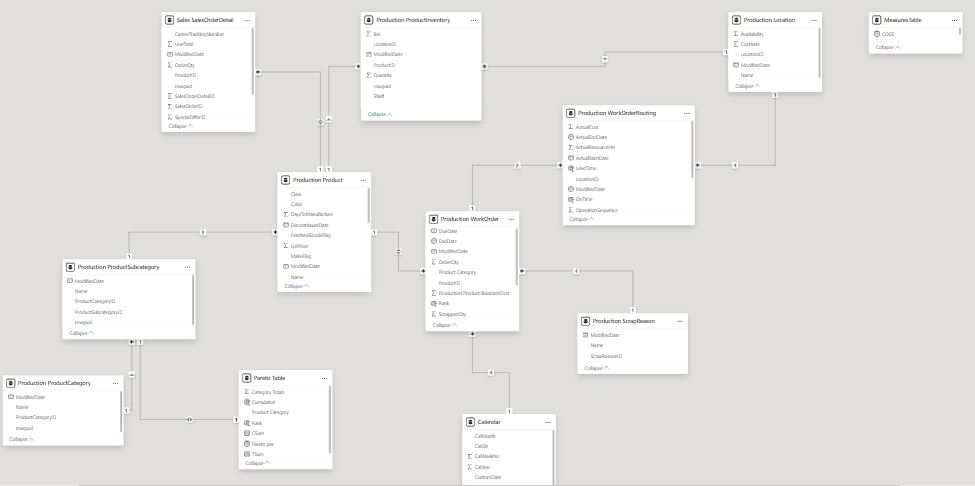
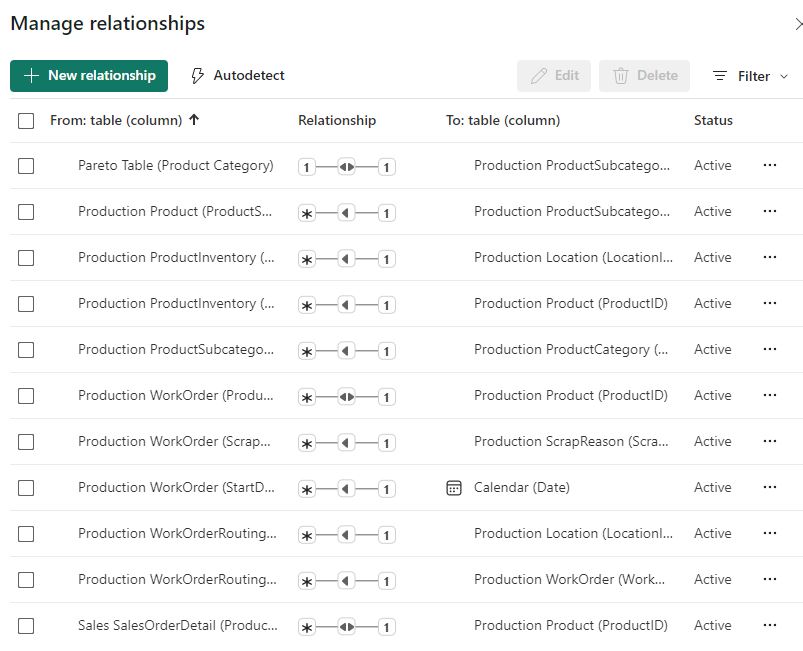
- Preparing a star schema based data model.
- Writing DAX for Various Measures, a Pareto table and a Calendar table
- Preparing a well designed and organized Dashboard with Homepage, Navigation and Links
3. Setup SQL Server
- Download SQL server localDB from here
I downloaded the SQL Server 2022 Express edition, which downloaded the file SQL2022-SSEI-Expr.exe. When you open this file you get a screen like below
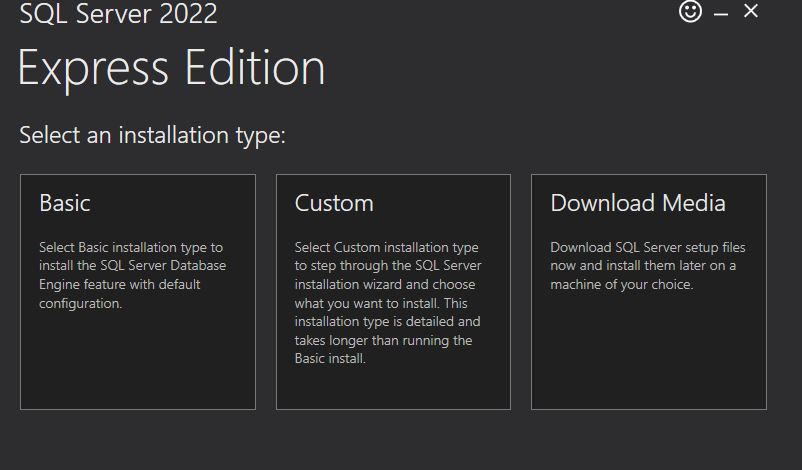
Click on Download Media and Save the file SqlLocalDB.msi to your preferred location and then double click on it to install SQL Server LocalDB to you machine. It's basically a DBMS which supports T-SQL, which I used to load AdvenureWorks Database to SQL server. Once you install SQL server LocalDB, it install a utility sqllocaldb which we use to interact and manage SQL server LocalDB. For example to find the instance name, start and stop the instance.
- You also need to install Microsoft® Command Line Utilities for SQL Server, which install sqlcmd command line utility to interact with SQL server. Download and install from here This utilty helps to run SQL command against SQL Server LocalDB.
- Open a cmd and run
sqllocaldb info. This will show your local instance name. In my case it showedMSSQLLocalDB. - Check the status of the instance with
sqllocaldb info MSSQLLocalDB. If Instance State is stopped run tosqllocaldb start MSSQLLocalDBstart it cdto the path of extracted AdventureWorks OLTP Scripts Zip .
Open the file instawdb.sql with your favourite text editor and change folder path in this line :setvar SqlSamplesSourceDataPath "C:\Samples\AdventureWorks" to the location of extracted AdventureWorks OLTP Scripts Zip
Run command to retore the database
sqlcmd -i instawdb.sql -S "(localdb)\MSSQLLocalDB"
This will restore the database with name AdventureWorks.
If you were using the tradition AdvetureWorks DB, you might face an issue while restoring the db. Check the issue and solution here
6. Load Data from SQL Server to Power BI
Click on SQL Server Data on the Home ribbon of Power BI Desktop. I was presented with a dialog box to fill connection details, which we know from Databse Restoration steps above.
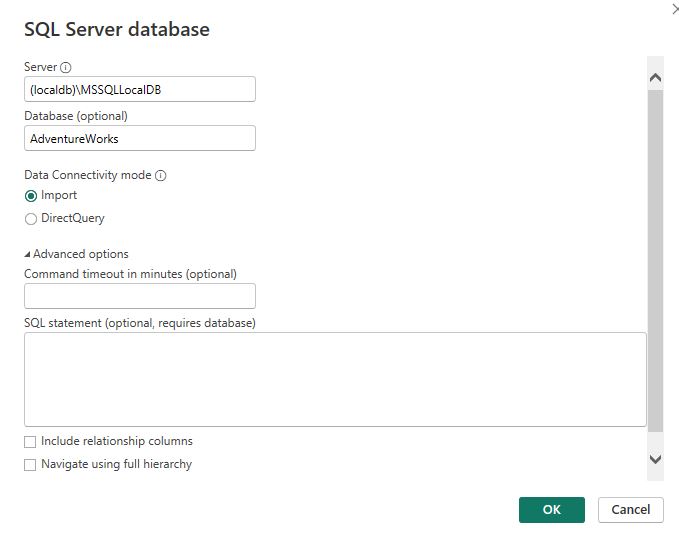
While working with any database ERD diagrams are really useful. I found the ERD diagram here, studied it and decided to use below tables for my analysis
| Table Name | Schema | Description |
|---|---|---|
| Product | Production | Products, their physical details, price, etc. |
| ProductCategory | Production | Products and their categories |
| ProductSubCategory | Production | Products and their subcategories |
| Location | Production | Parts used to manufacture each product are defined here with an assembly location category |
| ProductInventory | Production | Inventory data of the products |
| WorkOrder | Production | Production transactions and related data |
| WorkOrderRouting | Production | Production work order scheduling data and details |
| SalesOrderDetial | Sales | Sales Transactional Data |
Once you select these tables, click on Load button to load them. Remeber I selected Import data while connecting to the database so data will be loaded to the Power BI report.
7. Transformations and The Data Model
1. Transformations
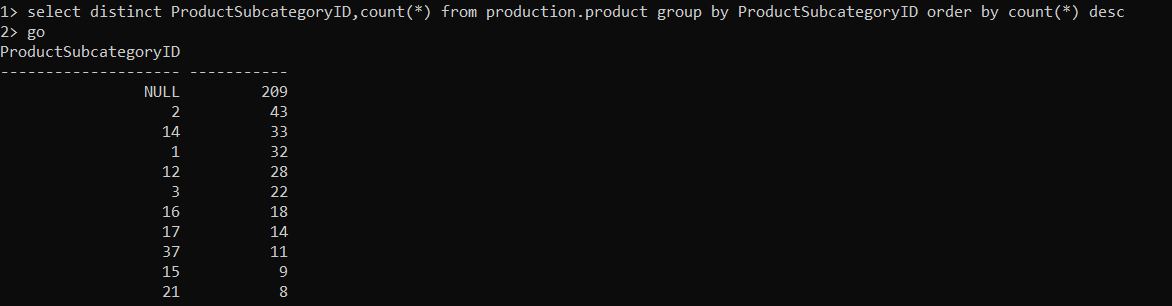
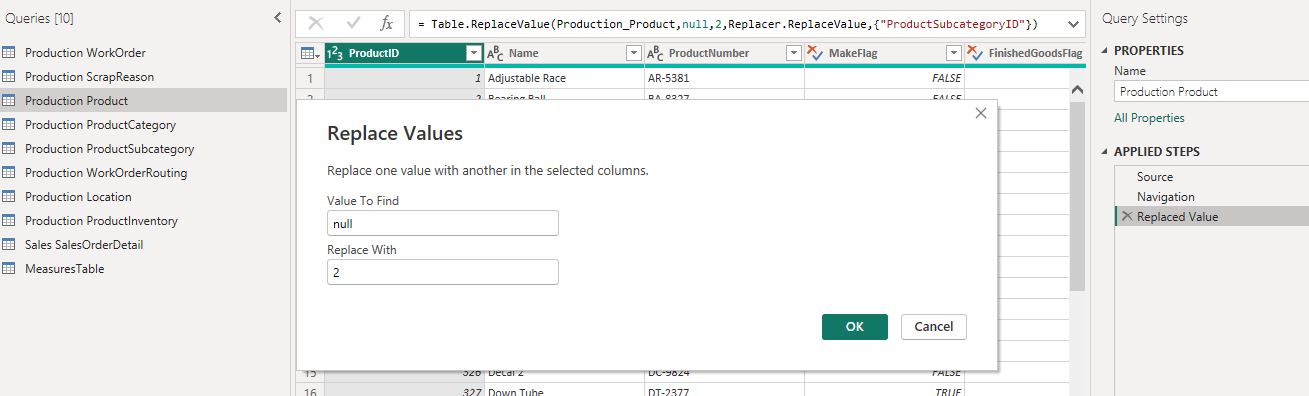
1. Checked all tables for the distributions of the columns while trying to make sense of their usage in my analysis. There were null values in ProductSubcategoryID column of product, Checked the distibution of different values and decided to replace null values with most common value of 2.
2. Used below DAX code to create a Calendar Table in order to automatically generate Fiscal year segregations
Calendar =

--Inputs--
VAR WeekStartsOn = "Sun"
VAR FiscalStartMonth = 10

--NOTE: Calendar week starts from Sunday

--Calculation--
RETURN
    ADDCOLUMNS (
        CALENDARAUTO ( FiscalStartMonth - 1 ),
        "MIndex", MONTH ( [Date] ),
        "FiscalMIndex", MONTH ( EDATE ( [Date], - FiscalStartMonth + 1 ) ),
        "CalMonth", FORMAT ( [Date], "mmm" ),
        "CalQtr", "Q"
            & CEILING ( MONTH ( [Date] ), FiscalStartMonth - 1 ) / ( FiscalStartMonth - 1 ),
        "CalYear", YEAR ( [Date] ),
        "Fiscal Week",
        VAR FiscalFirstDay =
            IF (
                MONTH ( [Date] ) < FiscalStartMonth,
                DATE ( YEAR ( [Date] ) - 1, FiscalStartMonth, 1 ),
                DATE ( YEAR ( [Date] ), FiscalStartMonth, 1 )
            )
        VAR FilteredTableCount =
            COUNTROWS (
                FILTER (
                    SELECTCOLUMNS ( GENERATESERIES ( FiscalFirstDay, [Date] ), "Dates", [Value] ),
                    FORMAT ( [Dates], "ddd" ) = WeekStartsOn
                )
            )
        VAR WeekNos =
            IF (
                FORMAT ( FiscalFirstDay, "ddd" ) <> WeekStartsOn,
                FilteredTableCount + 1,
                FilteredTableCount
            )
        RETURN
            "Week " & WeekNos,
        "Fiscal Qtr", "Q"
            & CEILING ( MONTH ( EDATE ( [Date], - FiscalStartMonth + 1 ) ), 3 ) / 3,
        "Fiscal Year",
        VAR CY =
            RIGHT ( YEAR ( [Date] ), 2 )
        VAR NY =
            RIGHT ( YEAR ( [Date] ) + 1, 2 )
        VAR PY =
            RIGHT ( YEAR ( [Date] ) - 1, 2 )
        VAR FinYear =
            IF ( MONTH ( [Date] ) > ( FiscalStartMonth - 1 ), CY & "-" & NY, PY & "-" & CY )
        RETURN
            FinYear,
        "CalWeekNo", WEEKNUM ( [Date], 2 ),
        "Weekend/Working", IF ( WEEKDAY ( [Date], 2 ) > 5, "Weekend", "Working" ),
        "Day", FORMAT ( [Date], "ddd" ),
        "CustomDate", FORMAT ( [Date], "d/mm" )
    )
- Created a Pareto Table and added new Columns and measures using DAX code as below
Pareto Table = SUMMARIZE( 'Production WorkOrder', 'Production ProductSubcategory'[Name], " Category Totals ", [OrderQuantity])

#measures
CSum =
CALCULATE( SUM( 'Pareto Table'[ Category Totals ]), FILTER( ALLSELECTED( 'Pareto Table'), 'Pareto Table'[Rank] <= MAX( 'Pareto Table'[Rank])))

TSum = CALCULATE( SUM( 'Pareto Table'[ Category Totals ]), ALLSELECTED( 'Pareto Table'))

#columns

Rank = RANKX( ALL('Pareto Table'), 'Pareto Table'[ Category Totals ])

Cumulative = CALCULATE( SUM('Pareto Table'[ Category Totals ]), FILTER( ALL('Pareto Table'[Rank]), 'Pareto Table'[Rank] <= MAX('Pareto Table'[Rank])))
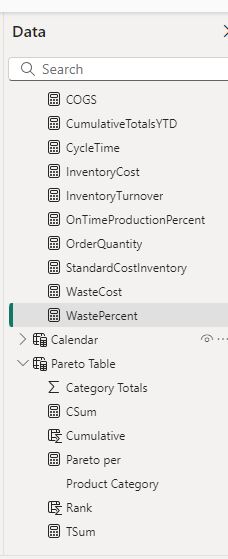
- Created different measures as follows
COGS = SUM( 'Production Product'[StandardCost]) * SUM( 'Sales SalesOrderDetail'[OrderQty])

CumulativeTotalsYTD = TOTALYTD(SUM('Production WorkOrder'[OrderQty]), 'Calendar'[Date], "09/30")

CycleTime = SUM( 'Production WorkOrderRouting'[ActualResourceHrs] ) / SUM ( 'Production WorkOrder'[OrderQty] )

InventoryCost = SUM( 'Production ProductInventory'[Quantity])* SUM('Production Product'[ListPrice])

InventoryTurnover = AVERAGEX(
                          SUMMARIZE( 'Production Product',
                                     'Production Product'[Name],
                                     "InventoryTurnover",[InventoryTurnoverWrongTotals]
                                     ),
                                     [InventoryTurnover]
                                     )

OnTimeProductionPercent =
VAR Num_0 = COUNTROWS(FILTER('Production WorkOrderRouting', 'Production WorkOrderRouting'[OnTime] = 0))
VAR Num_1 = COUNTROWS(FILTER('Production WorkOrderRouting', 'Production WorkOrderRouting'[OnTime] = 1))
RETURN
Num_1/(Num_0+Num_1)

OrderQuantity = SUM( 'Production WorkOrder'[OrderQty])

StandardCostInventory = sum('Production WorkOrder'[StockedQty])*sum('Production Product'[StandardCost])

WasteCost = SUM('Production WorkOrder'[ScrappedQty]) * AVERAGE('Production

WorkOrder'[Production.Product.StandardCost])

WastePercent = calculate(SUM( 'Production WorkOrder'[ScrappedQty])/SUM('Production WorkOrder'[OrderQty]))
2. Data Model
I modelled the data using a star schema with Product table as the fact table and others as Dimensions
8. Dashboard
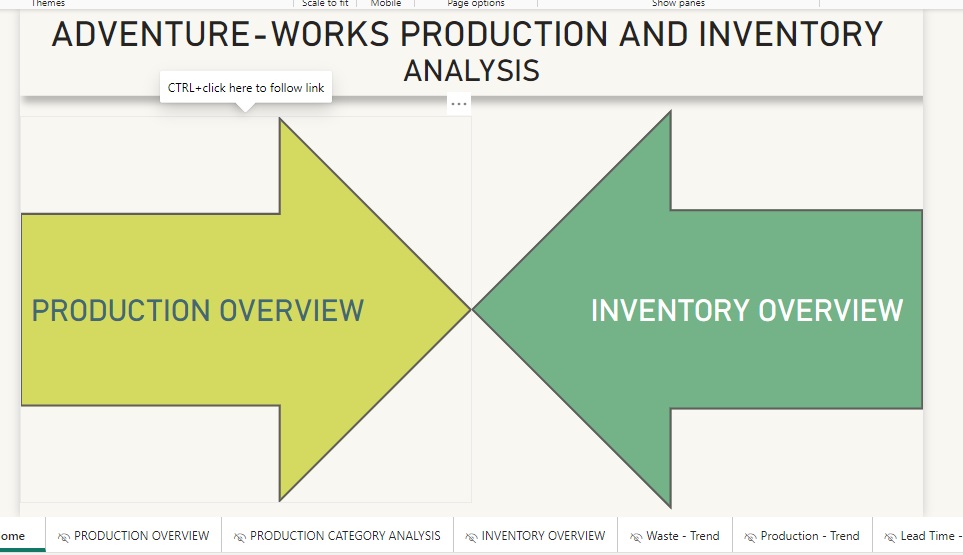
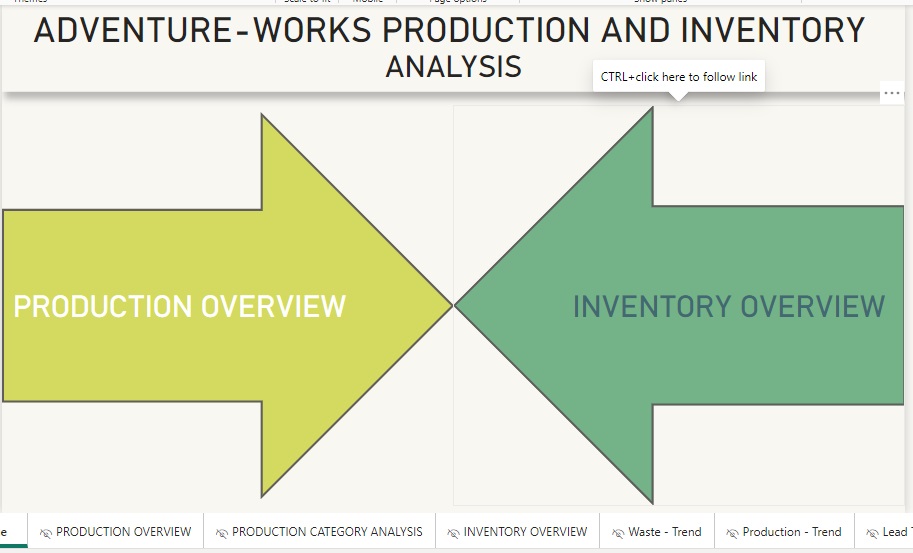
This dashboard analyses manufacturing and inventory operations, the dashboard is prepare to have a navigational interface. The main page includes leads to two areas namely Production Overview and Inventory Overview. Each then breakdown details and KPIs on their own page afterward.
Homepage
Production Overview
This page gives information about the manufacturing overview of the company
. An assumption is made that the fiscal year starts on October 1st and ends on September 30th.
All the charts and KPIs are described below: -
| KPI | Description and Purpose |
|---|---|
| Fiscal YTD - Waste | The total number of products wasted during production for the whole fiscal year. This helps and gives an idea and a comparison to yearly waste goals. |
| Fiscal YTD - Production | The total number of products manufactured during production for the whole fiscal year. This helps and gives an idea and a comparison to yearly production goals. |
| Average Production Lead Time | The average latency between the initiation and completion of production. This helps determine where is the company investing the labor, which part of the assembly is taking more time in production, and if lead time can be reduced. |
| Fiscal YTD - Production Hours | The total number of labor hours in production for the whole fiscal year. This helps and gives an idea and a comparison to yearly labor cost goals. |
| On-Time Production | Percent of time when production goals were met. Helps and gives an idea of if the company is supplying the demand on time. |
| Waste Percent | Percentage of products wasted during the manufacturing process. |
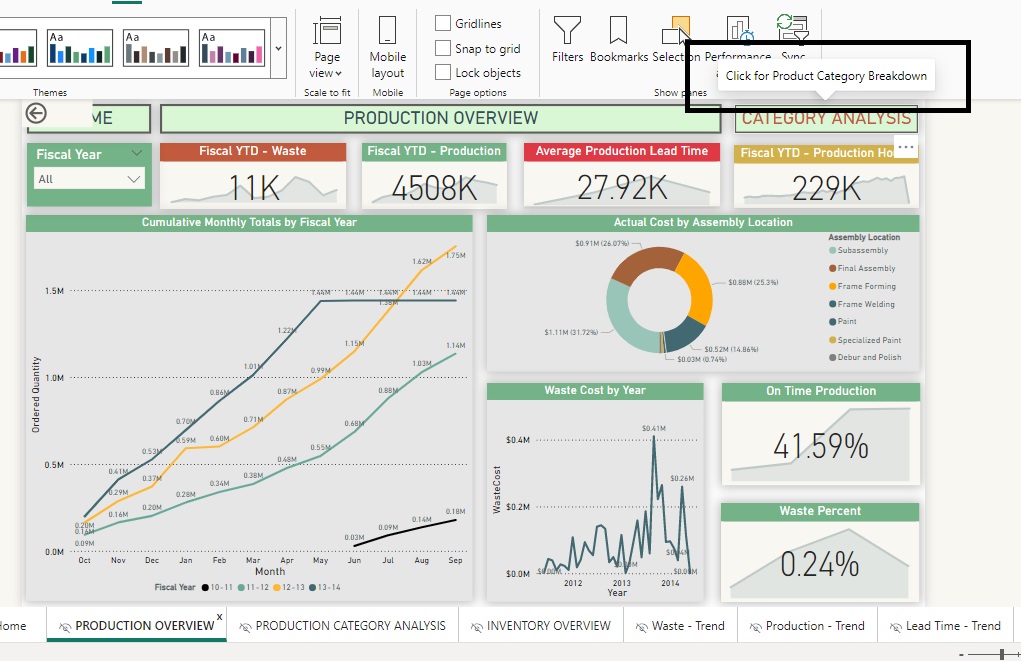
Each KPI has a trend in the background showing how the KPI has performed during that specific fiscal year.
Charts on the page
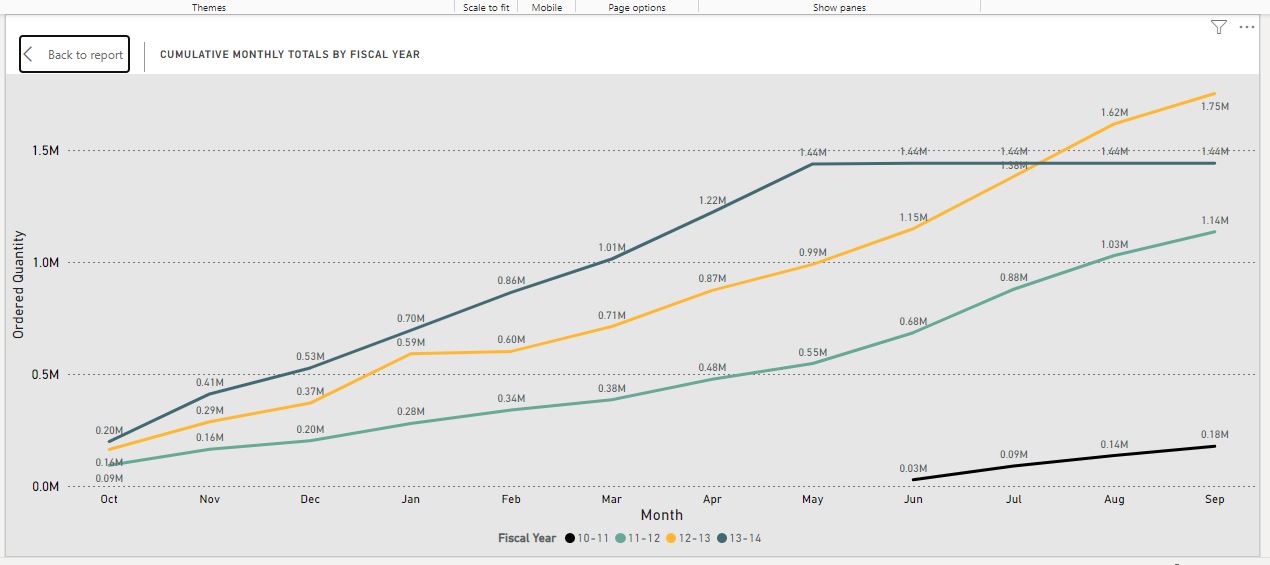
- Cumulative Multiline chart showing Production totals helps compare the fiscal year production trends and helps remove bottlenecks in manufacturing.
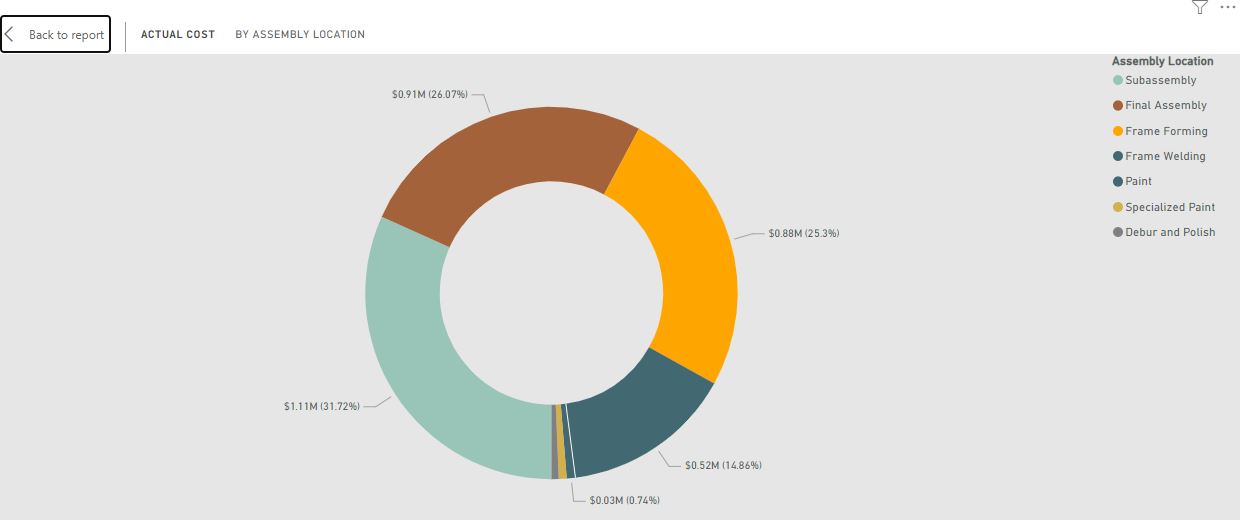
- Donut Chart showing Actual cost distribution over different parts of the assembly line. Helps determine which parts cost more and where improvement is needed so that production costs are reduced.
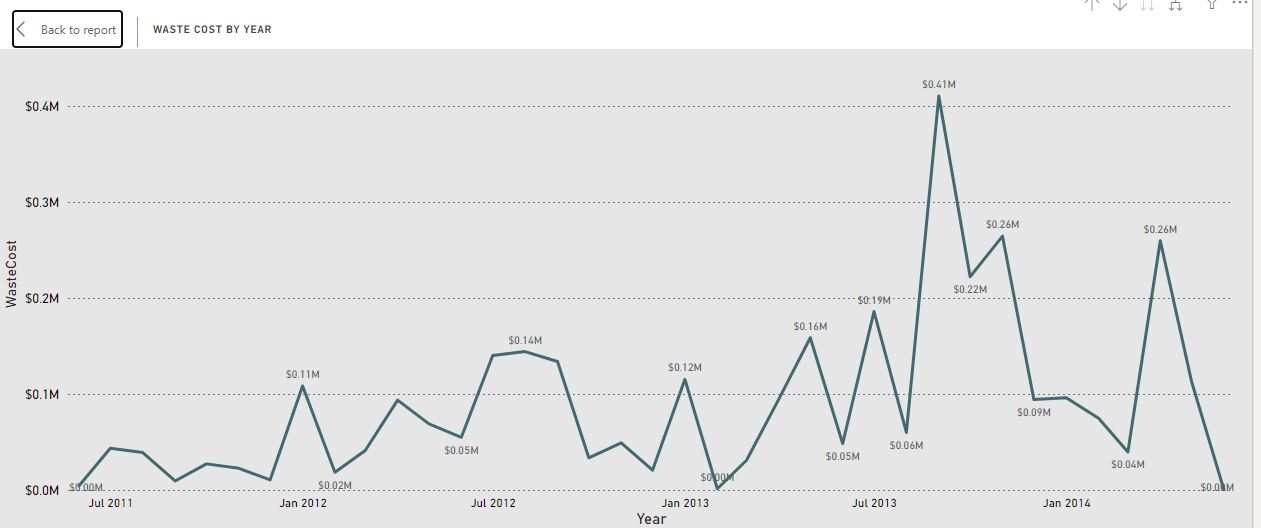
- Waste cost by year line chart. A simple chart showing how much money the company is wasting on discarded products and what is the trend
Category Analysis
You can navigate to the PRODUCTION CATEGORY ANALYSIS page by clicking on the CATEGORY ANALYSIS button on the top of the page. Product Category Page will help identify specific issues in the manufacturing system.
Pareto Charts
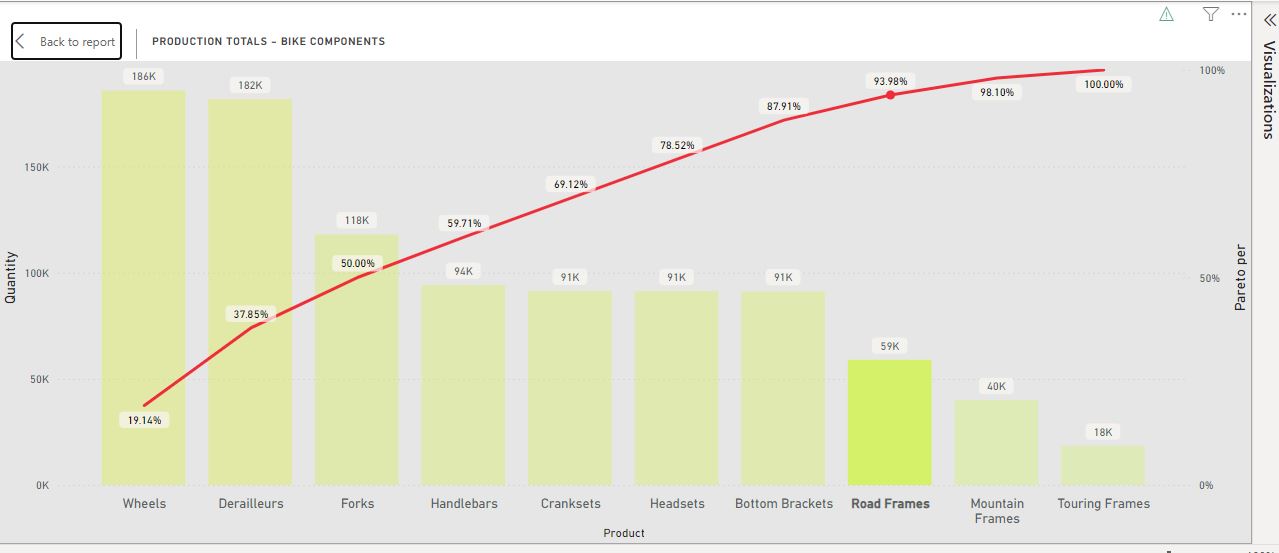
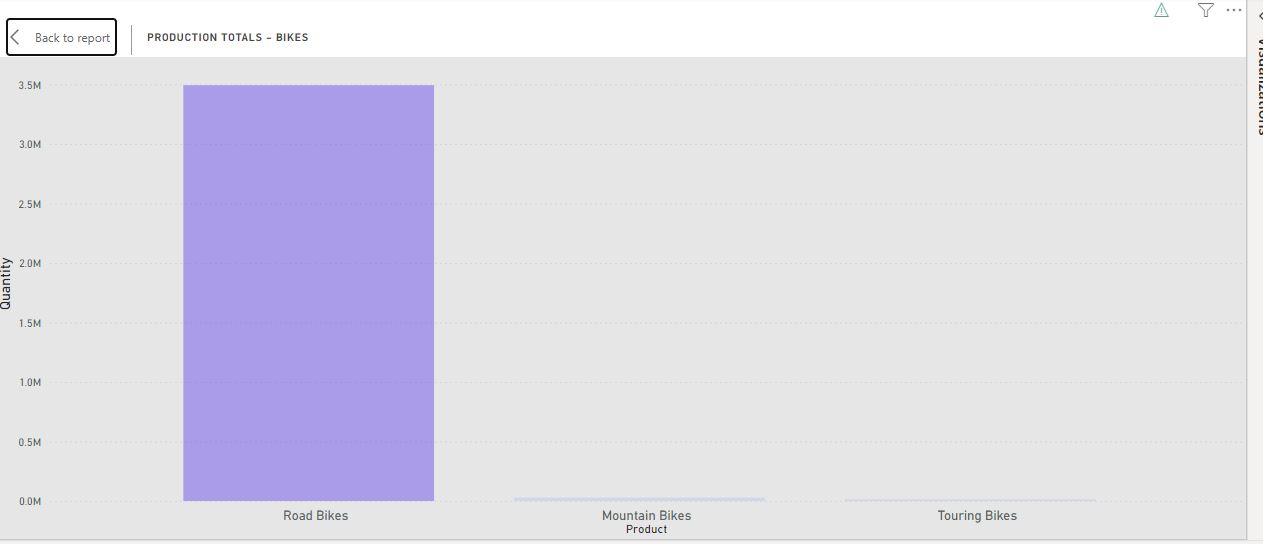
A Pareto chart is a Bar graph, the length of the chart represents frequency or cost, the longest bars are arranged on the left and the shortest to the right which amplifies the importance of the category with the highest bar. A line overlaps over the bar graph showing the percent contribution of the specific bar chart towards the total and the line accumulates the percent showing how many categories are important and consume most of the process. There are 2 Pareto Charts on this page, first is for the components required to manufacture a bike showing where most of the production is occupied and the other one is for the finished bike products showing categories of bikes produced.
Waste Cost - Product Matrix Visual
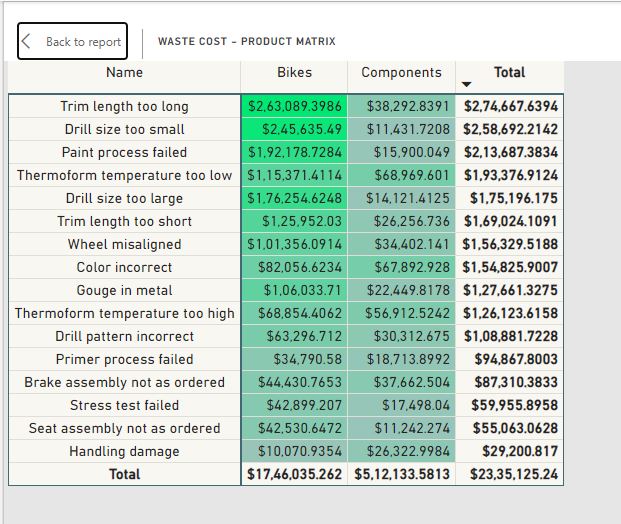
The Matrix visual shows the reason where exactly the waste is costing money to the company and due to which reasons. The first column provides the reason for waste, while the other two columns are divided into two categories Bikes (Actual bikes wasted in production) and Components (Components of bikes wasted in production). The Cost is conditionally formatted showing which portion is costing more and the reason for it. There are subtotals on rows and columns and grand total for total waste money.
Bar chart
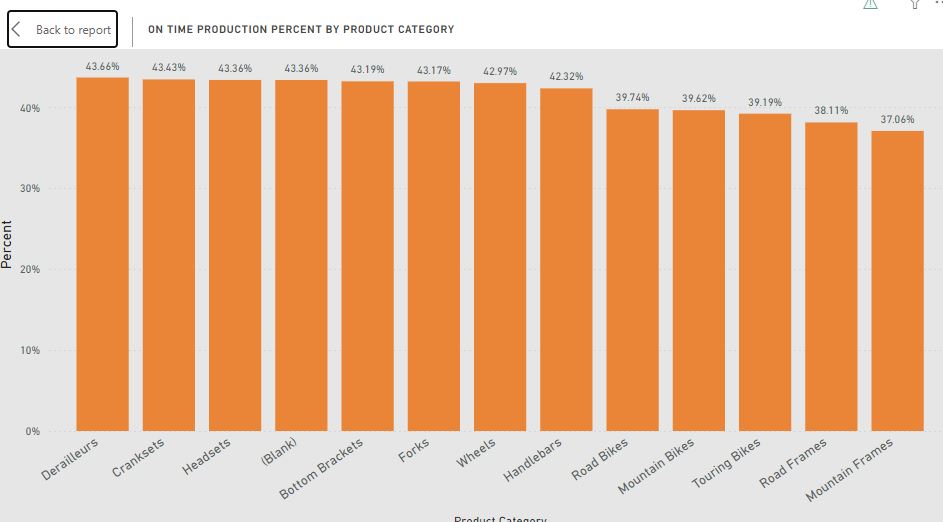
A simple bar chart showing how many Product categories are produced on time.
Inventory Overview
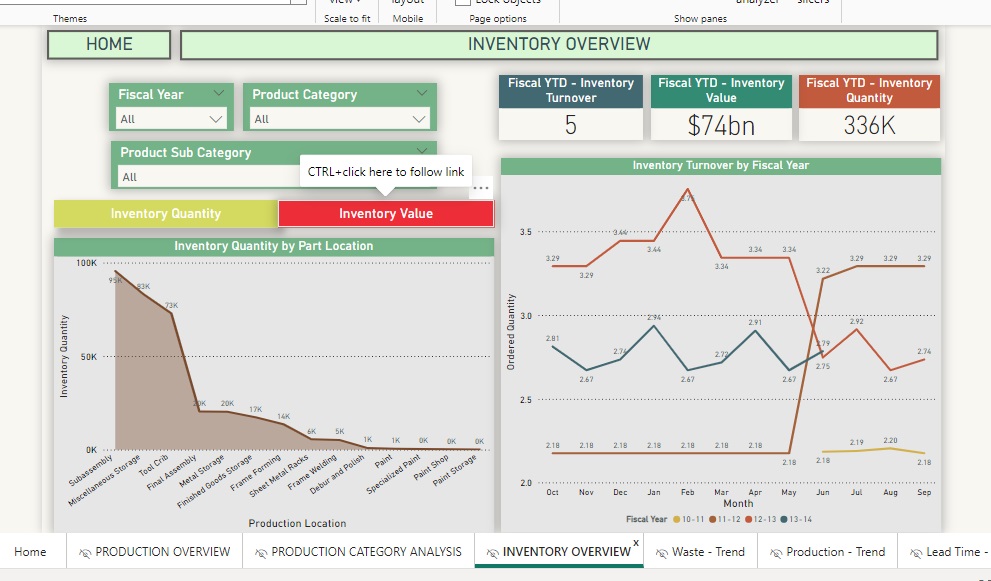
Another major component of the dashboard is the Inventory overview, although there is no data regarding the distribution supply chain in the database this analysis is done assuming the location is represents the distribution supply chain.
| KPI | Description and Purpose |
|---|---|
| Fiscal YTD - Inventory Turnover | The KPI tells us how many times did we make our product and then sold it. Technically how many productions and sales cycles did the inventory go through. |
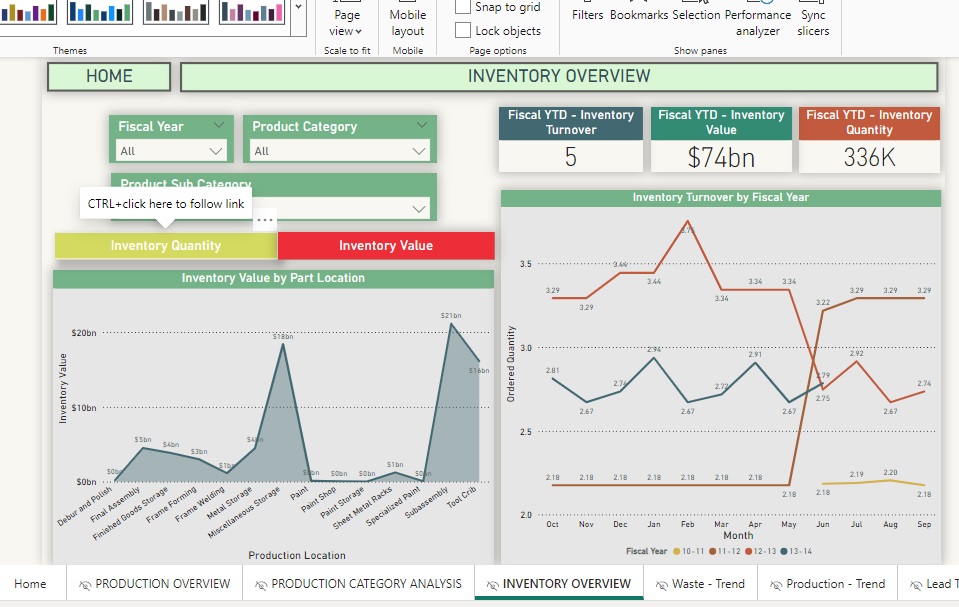
| Fiscal YTD - Inventory Value | The cost of the inventory the company is holding at the current stage. |
| Fiscal YTD - Inventory Quantity | The quantity of the inventory the company is holding at the current stage. |
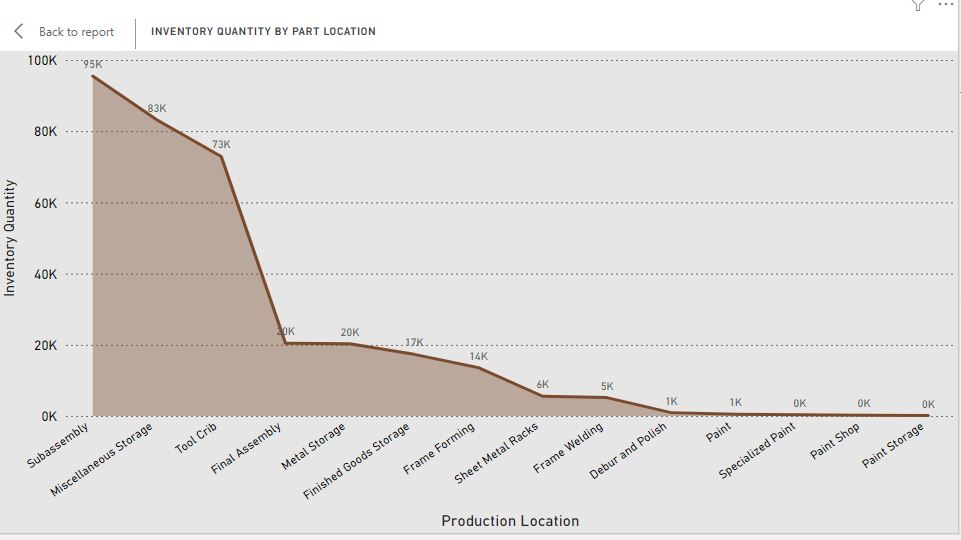
Area Charts
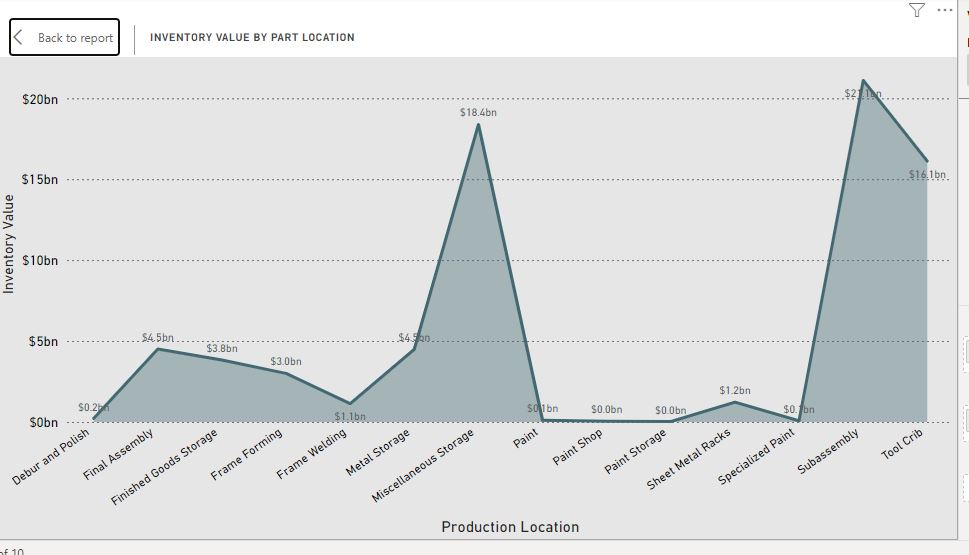
Area charts show how much Inventory quantity and Inventory value does the company hold by the Assembly location category are shown in the area chart. This shows which part of the manufacturing is holding most of the money and if the company is making the right choices of investing in those parts. I added 2 buttons on top of the chart(s) so the end-user can choose if he/she wants to view the quantity or value on the chart.
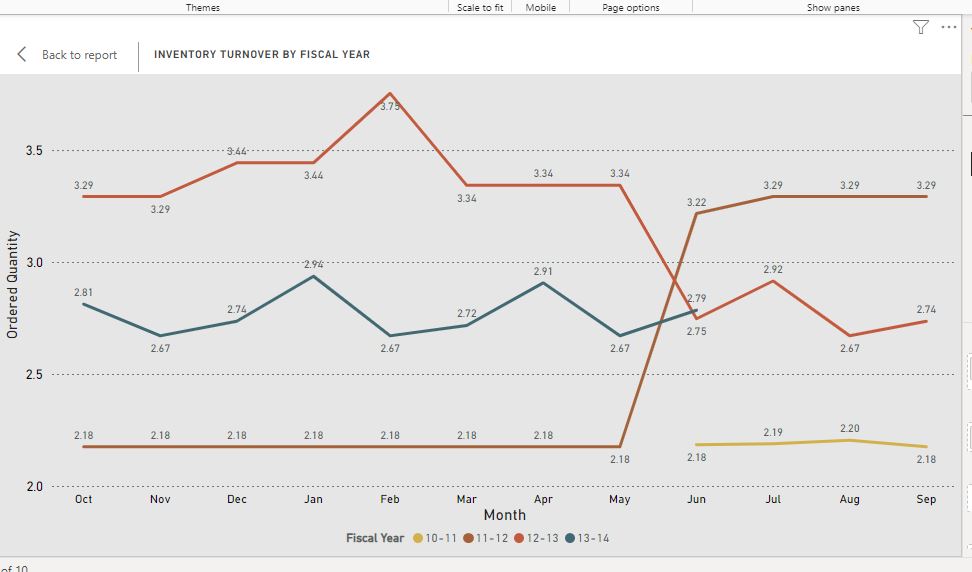
Inventory Turnover Multiline chart
Comparing inventory turnover on different fiscal years can show important data. The chart show the trends in previous years of how the inventory has been used and can help plan the production process.
9. Issues
- If you try to restore standard AdventureWorks DB using
USE [master];
GO
RESTORE DATABASE [AdventureWorks2022]
FROM DISK = N'C:\Program Files\Microsoft SQL Server\MSSQL16.MSSQLSERVER\MSSQL\Backup\AdventureWorks2022.bak'
WITH
    FILE = 1,
    NOUNLOAD,
    STATS = 5;
GO
you might get the error
Msg 5133, Level 16, State 1, Server , Line 1
Directory lookup for the file [filepath] failed with the operating system error 3(The system cannot find the path specified.).
In order to fix this issue you can run
RESTORE FILELISTONLY
FROM DISK = 'pathto\AdventureWorksDW2019.bak'
GO
to find the name of the logical [AdventureWorksDW2019] and the log [AdventureWorksDW2019_log] file and then use below code to restore the database
RESTORE DATABASE [AdventureWorks2019]
FROM DISK = 'pathto\AdventureWorksDW2019.bak'
WITH
    MOVE 'AdventureWorksDW2019' TO 'desired location\AdventureWorksLT2019_Data.mdf',
    MOVE 'AdventureWorksDW2019_log' TO 'desired location\AdventureWorksLT2019_Log .ldf',
    FILE = 1,
    NOUNLOAD,
    STATS = 5;
GO
Basically, the code above will use thelogical file [AdventureWorksDW2019] to create [desired location]\AdventureWorksLT2019_Data.mdf and the log file and restore the db.
2. While using the latest[February 2025 ] Power BI Desktop, I faced the issue that it will hand no matter how small the dataset or the filetype and would use almost all my system resources. So I downgrade to previous release and it worked like charm.
Another issue, for which I have no solution is that the map visuals would not work on my PC. I did enable them in settings, but they won't work. The issue is most likely from my PC setting for privacy, but I could not fix it.